Setup
SSH Screensharing
User office workstation setup
Network setup
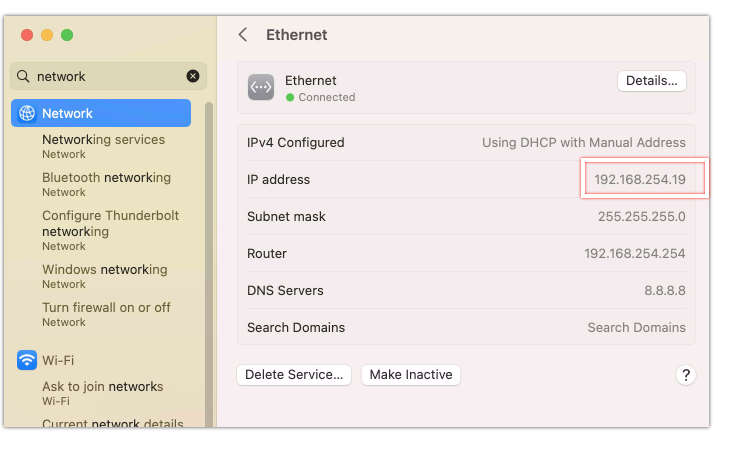
On the users' workstations, ensure the workstation is on the correct network, and note the IP address of the workstation. In particular, the last octet (eg, xxx.xxx.xxx.128), you're interested in the .128.
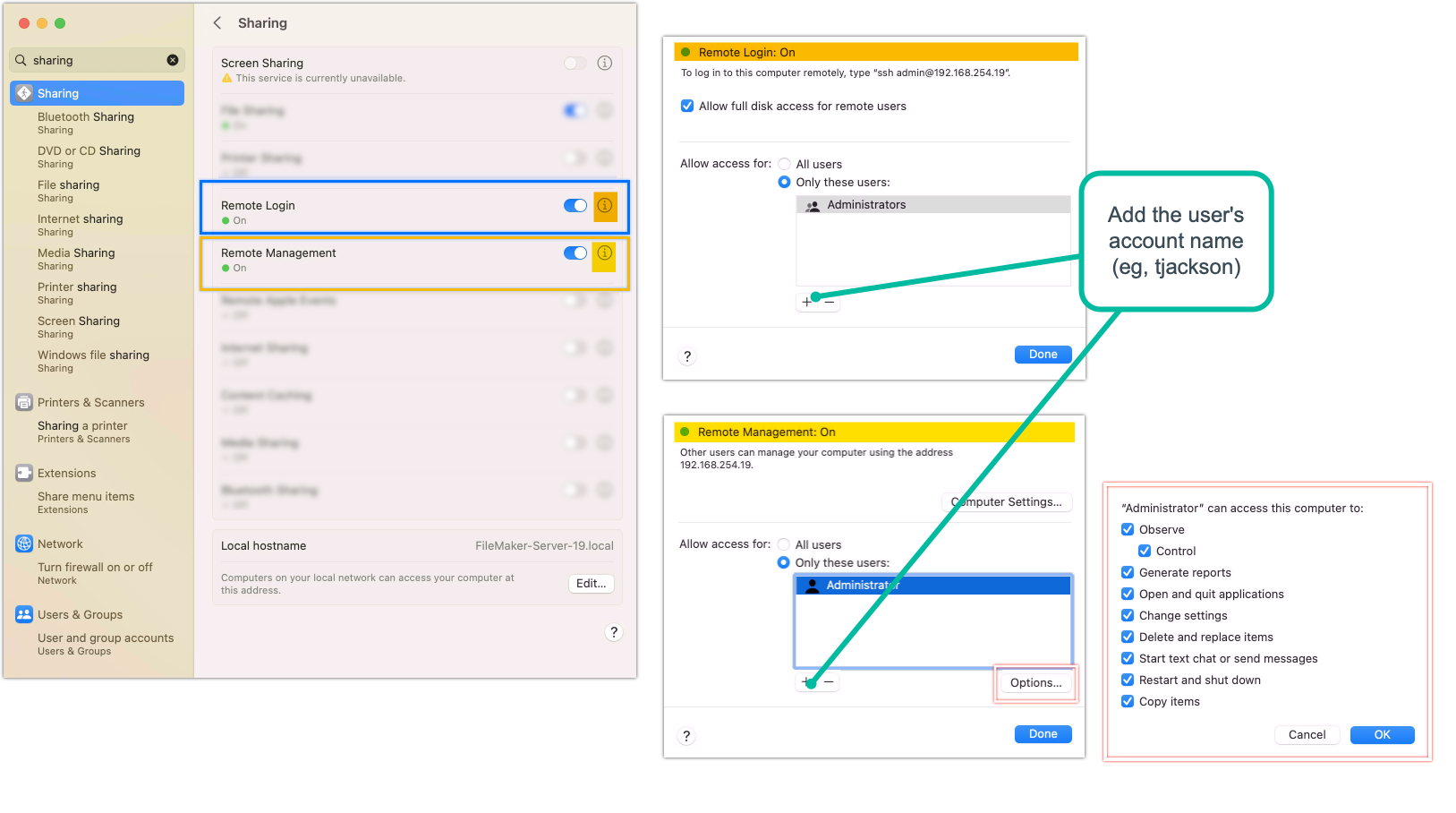
Remote Management setup (the screensharing piece)
and
Remote Login setup (the SSH piece)
User's remote workstation setup
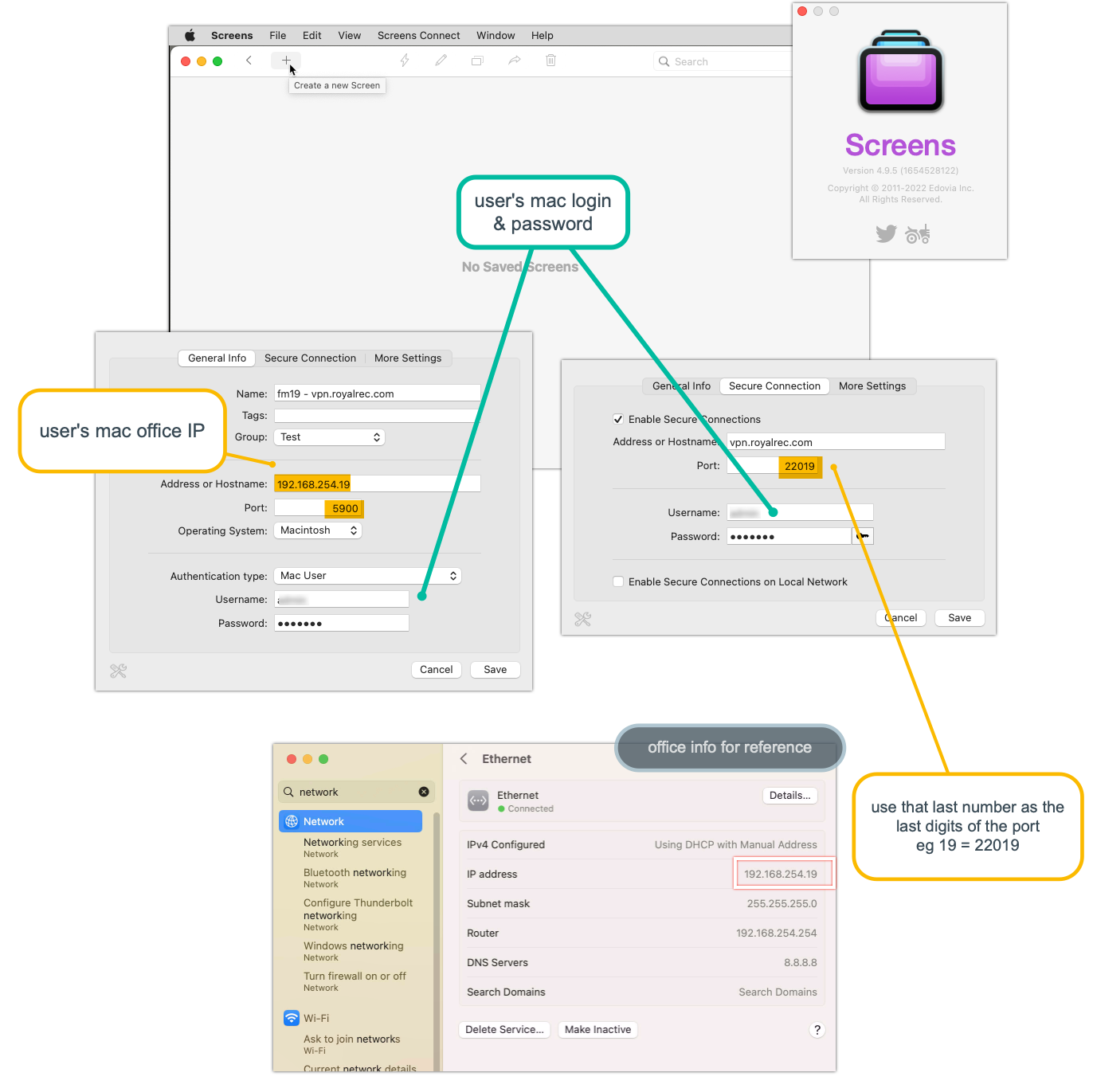
From the user's workstation/laptop they will work remotely from, and accessing their office workstation, they will need Screens (app) installed, by Edovia. This goes beyond the built-in screen sharing app that comes with MacOS, as it allows a SSH tunnel to be established first, and then provide the screen sharing service through that tunnel. No SSH key pairs required, since the user is establishing their connection using their office workstation credentials, per usual.
Office router setup (firewall, port-forwarding)
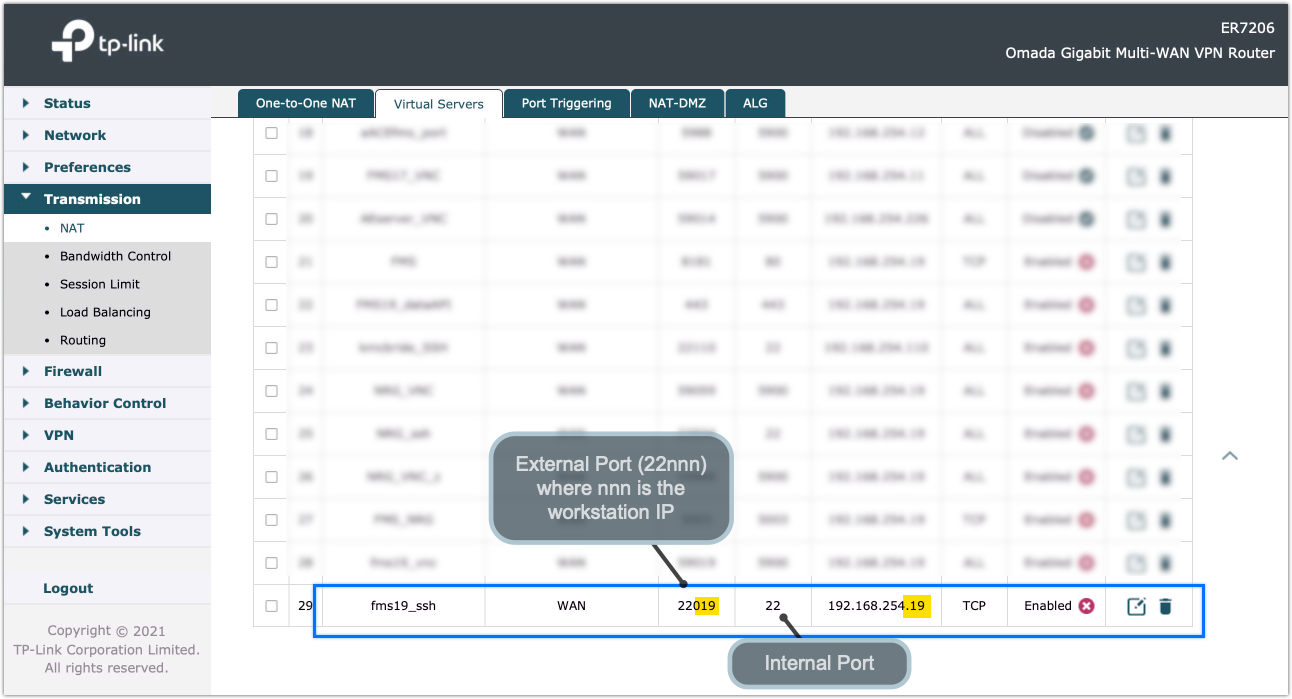
From the office router, open and forward SSH port.
Troubleshooting
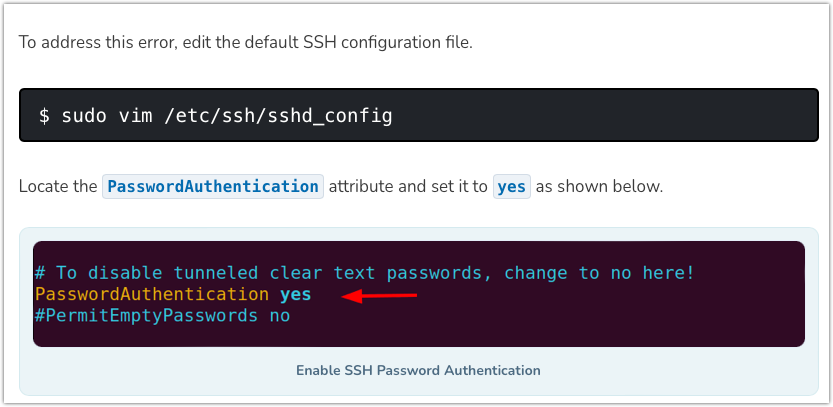
If there's an error regarding (publickey), the sshd_config file may need to be edited to resolve.